How to Change Furniture in a Photo With AI – We Ran 12 Edits to See What Works and What Breaks
We ran 12 AI furniture edits on three rooms – sofa recolor, product-photo swap, wall, floor and multi-area – and measured what changed outside the brush. What worked, what broke, what leaked.
 Easy Room AI Team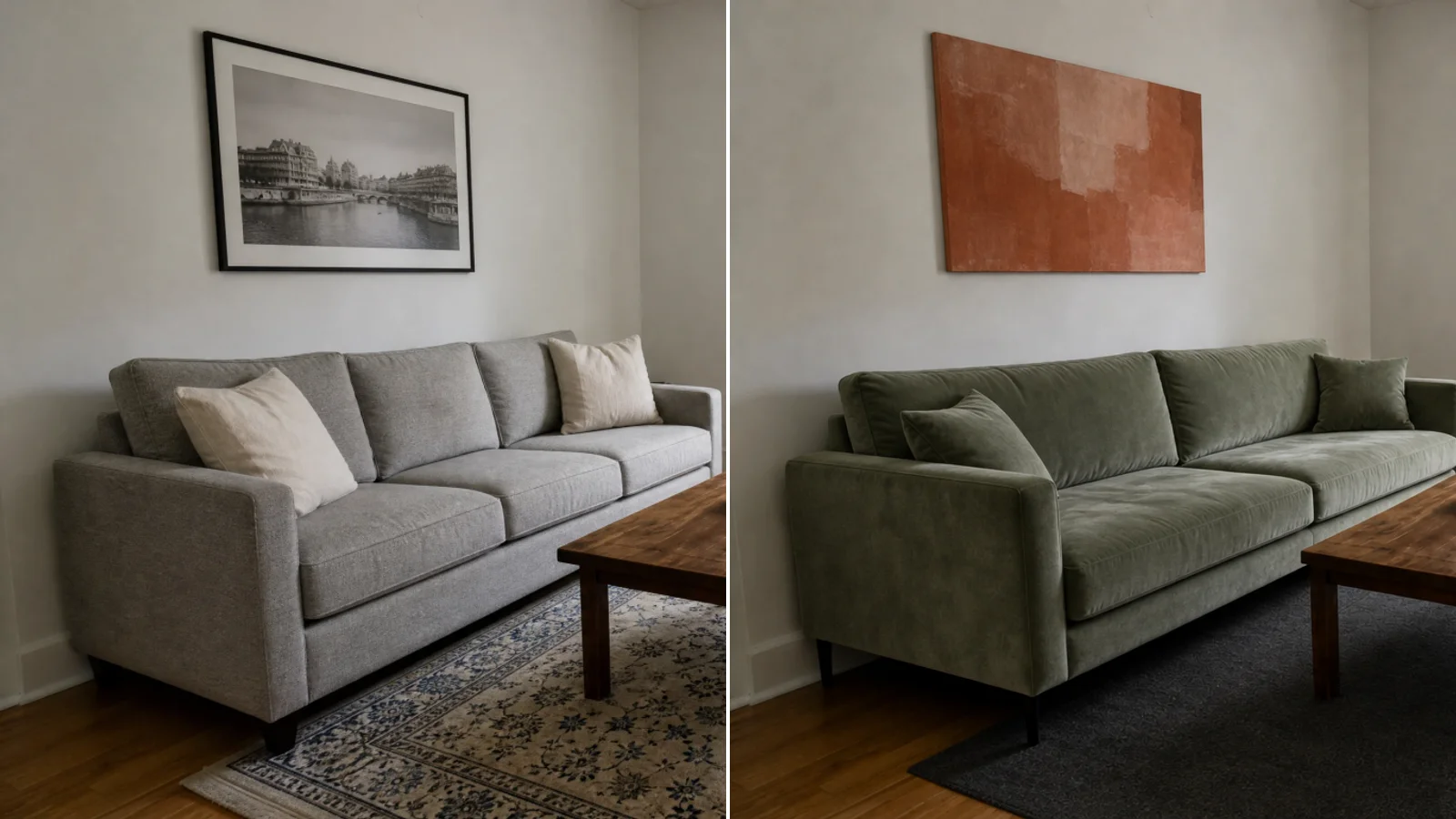
You can change furniture in a photo with AI in about a minute, and you don't need Photoshop: paint over the piece, say what it should become (or attach a product photo), and the model redraws that area in your room's light.
The question is how far you can trust the result. So we ran 12 real edits across three rooms and checked every one by eye. Nearly every change we asked for landed (one was only partial). But three things are worth knowing before you try it, and the tests showed how to word a note so they happen less often.
Why bother previewing at all? In a 2026 survey of 400 US furniture buyers, 62% said it's hard to visualize how furniture will look in their home. In a UK survey of 1,500 shoppers who had bought furniture or fittings online, 23% had returned large furniture in the past two years, and 55% said the colour or finish didn't match what they saw online. Houzz's 2026 report found 22% of renovating homeowners have already used AI on their projects, most often to get ideas (64%) and visualize concepts (58%).
The short version: what the 12 edits showed
| # | Edit | Result |
|---|---|---|
| 1 | Recolor a sofa (one sentence) | Landed. A throw cushion vanished and the back cushions merged |
| 2 | Swap the sofa using a product photo | Landed. Close to the product shot, a shade darker |
| 3 | Swap four dining chairs by describing them | Landed. Still four chairs |
| 4 | Repaint a wall | Landed. Lamps, bed and nightstands untouched |
| 5 | Replace the floor | Landed. Table and chairs untouched |
| 6–7 | Three areas at once, living room (named notes, then terse notes) | 3 of 3 areas both times |
| 8 | Three areas at once, bedroom | 2 clean, 1 partial (the bed runner stayed beige) |
| 9–10 | Three areas at once, dining room, named notes (two runs) | 3 of 3 both times, nothing else changed |
| 11–12 | Same dining room, terse notes (two runs) | 3 of 3 both times, but the unpainted table turned black |
Across the seven multi-area runs, 20 of 21 areas changed exactly as asked. The one miss was partial, not a failure. Details, and the one result that surprised us, are below.
How we ran the tests
- Three rooms we generated ourselves (living room, bedroom, dining room), so no real listing or client photos were used. Real phone photos with clutter, mirrors and mixed lighting are harder; we haven't tested those here.
- The same code path as the EasyRoomAI AI Room Editor: the editor's mask-merge step and prompt builder, sent to the
gpt-image-2image model at medium quality. - Masks traced as tidy outlines. A hand-painted brush is looser, so expect slightly softer edges than ours.
- Judged by eye, not by a script. We looked at every result next to its original. We also measured how many pixels moved outside the painted area (the "drift" section).
- Small sample. Twelve edits show patterns, not guarantees. Where we repeated a test, we say so.
Stage a Vacant Room with AI in 30 Seconds
Upload an empty room photo to generate photorealistic, MLS-compliant staged furniture.
Supports JPG, PNG, WebP up to 10MB
Recolor a sofa with one sentence
The simplest edit: paint the sofa, type "change the sofa to deep navy blue."
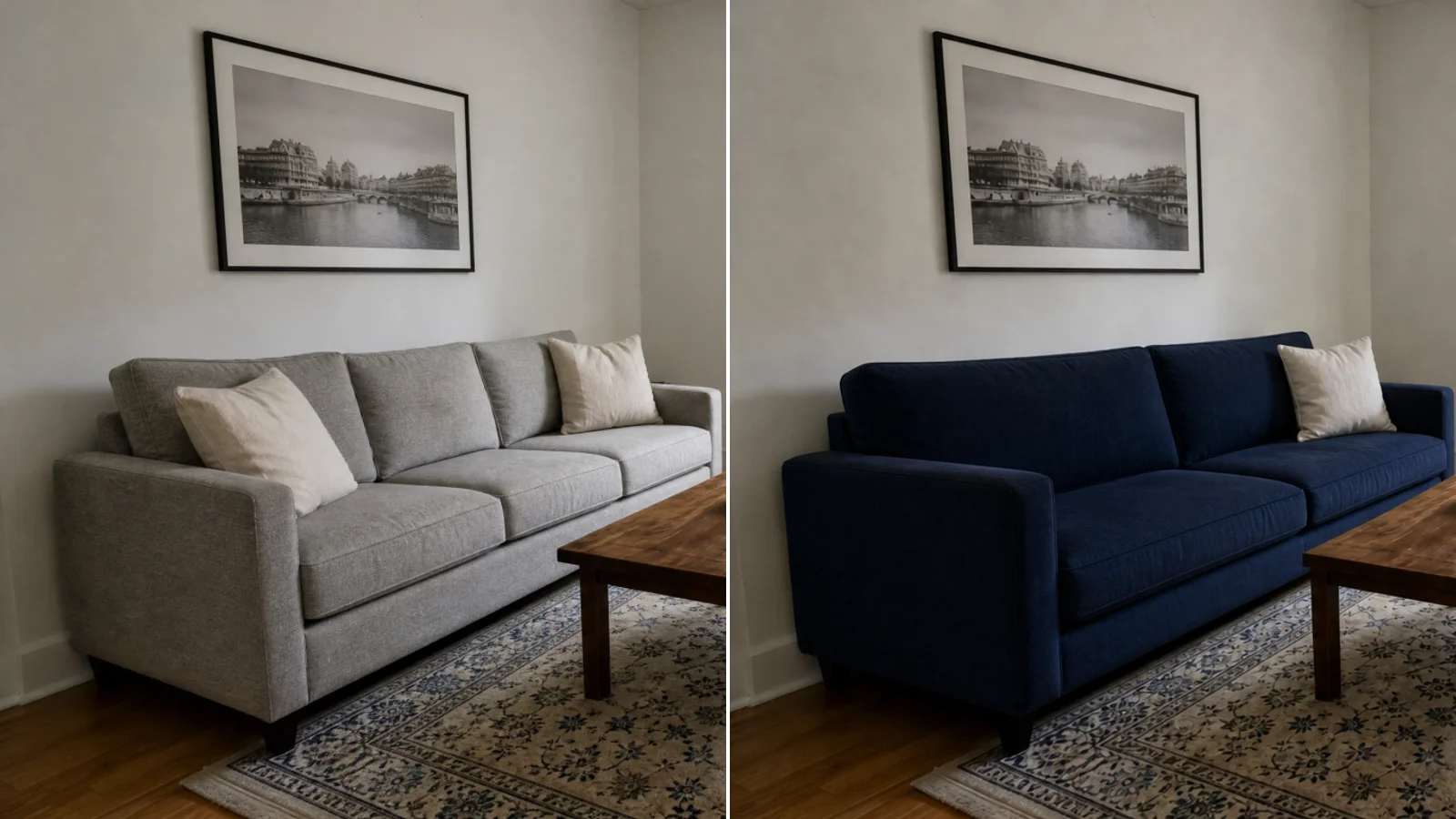
The colour came out rich and even, the fabric kept its texture, and the rug, table and wall were untouched. Look closely at the cushions, though. The beige throw pillow on the left disappeared, and the three back cushions became two. Anything inside your brush is open to reinterpretation.
Takeaway: a recolor keeps the sofa's footprint, not necessarily its details. If a cushion matters, paint around it.
Swap a sofa for the exact one you're considering
A text note describes a category ("a leather sofa"). A product photo describes the specific piece: arm shape, leg finish, shade. For edit 2, we painted the old sofa and attached a plain white-background packshot of a rust-orange leather three-seater.
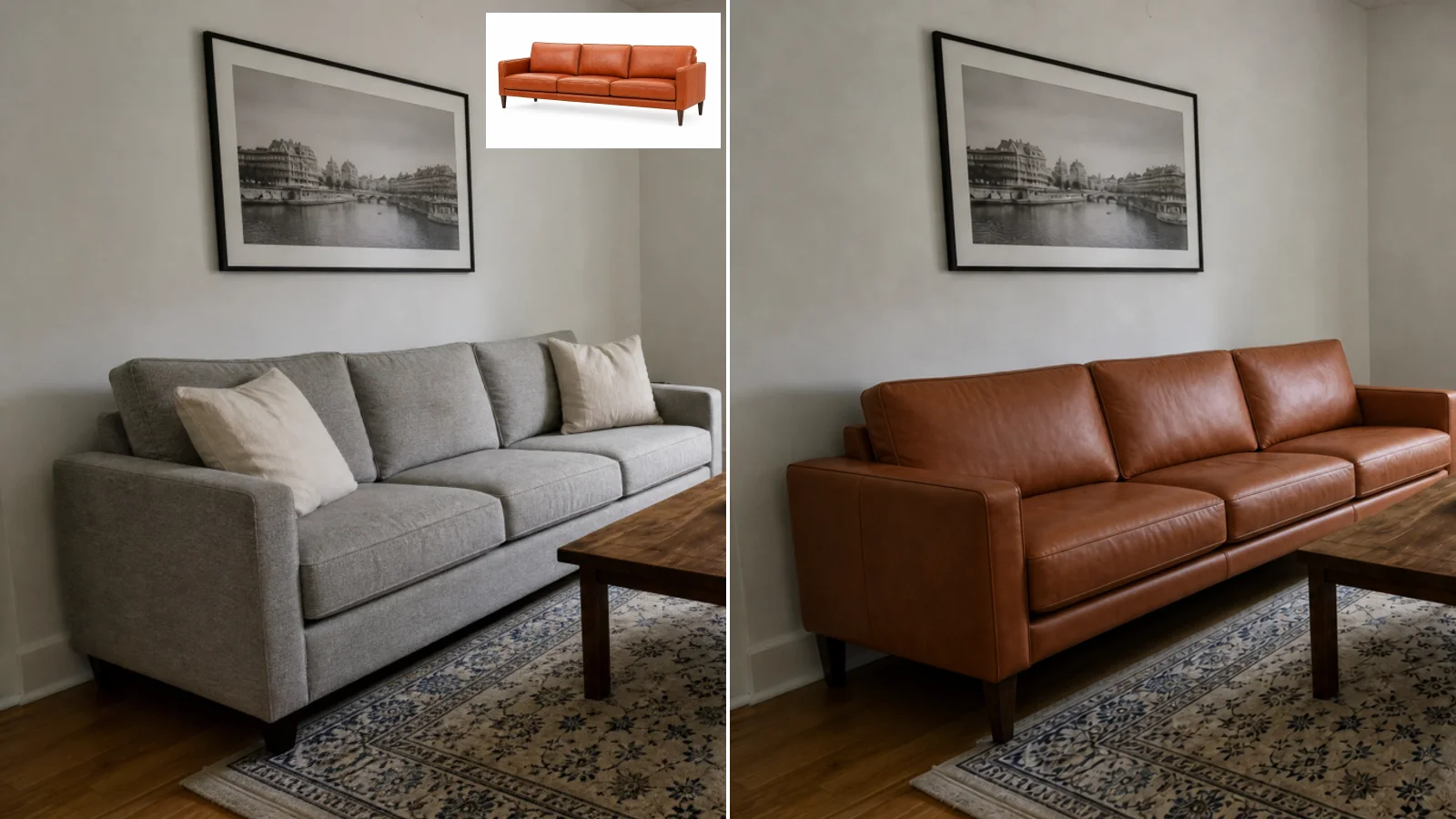
The result is recognisably that sofa: three seat cushions, slim square arms, tapered dark legs, placed at the old sofa's angle with a fitting shadow. The leather came out a shade browner than the packshot, and both throw pillows were replaced along with the old sofa, as you'd expect.
Tips from this run:
- Use a product photo with the full outline visible and nothing cropped.
- An angled view usually beats a straight-on one when your room photo is shot from a corner.
- Paint the whole old sofa including its legs, as we did. We didn't test sloppy masks.
In the AI Room Editor, reference photos work with a free account, one area at a time.
Swap a set by describing it (four dining chairs)
No product photo? Describe it. We painted four upholstered dining chairs and wrote "replace the four dining chairs with black wooden chairs with woven rattan seats."
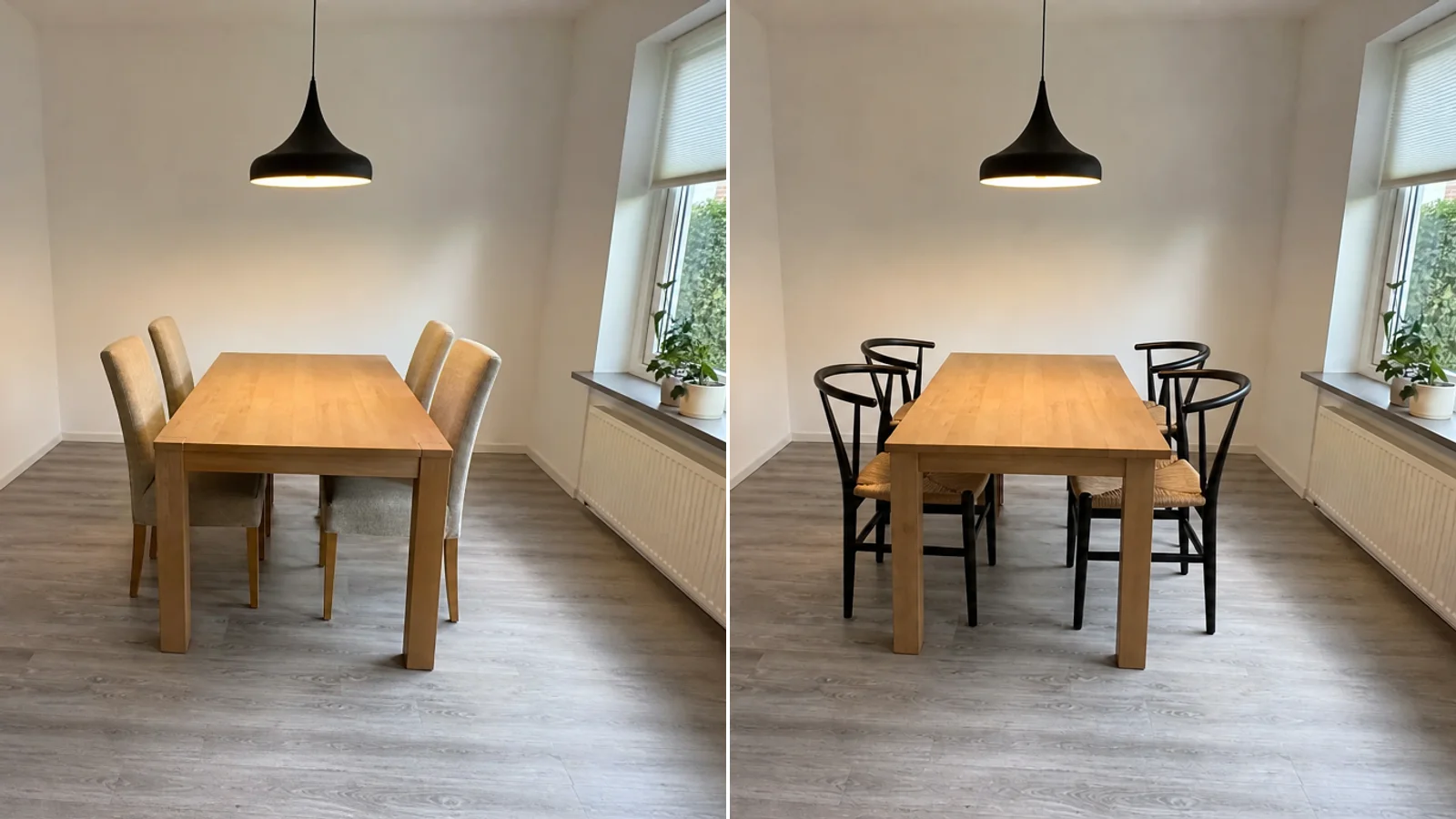
We got four chairs back, in the right positions, with the table and floor unchanged. Across all five dining-room runs that painted the chairs, the count held at four every time.
Change a wall colour or a floor
Walls and floors are the biggest surfaces in a room, and the easiest to preview.
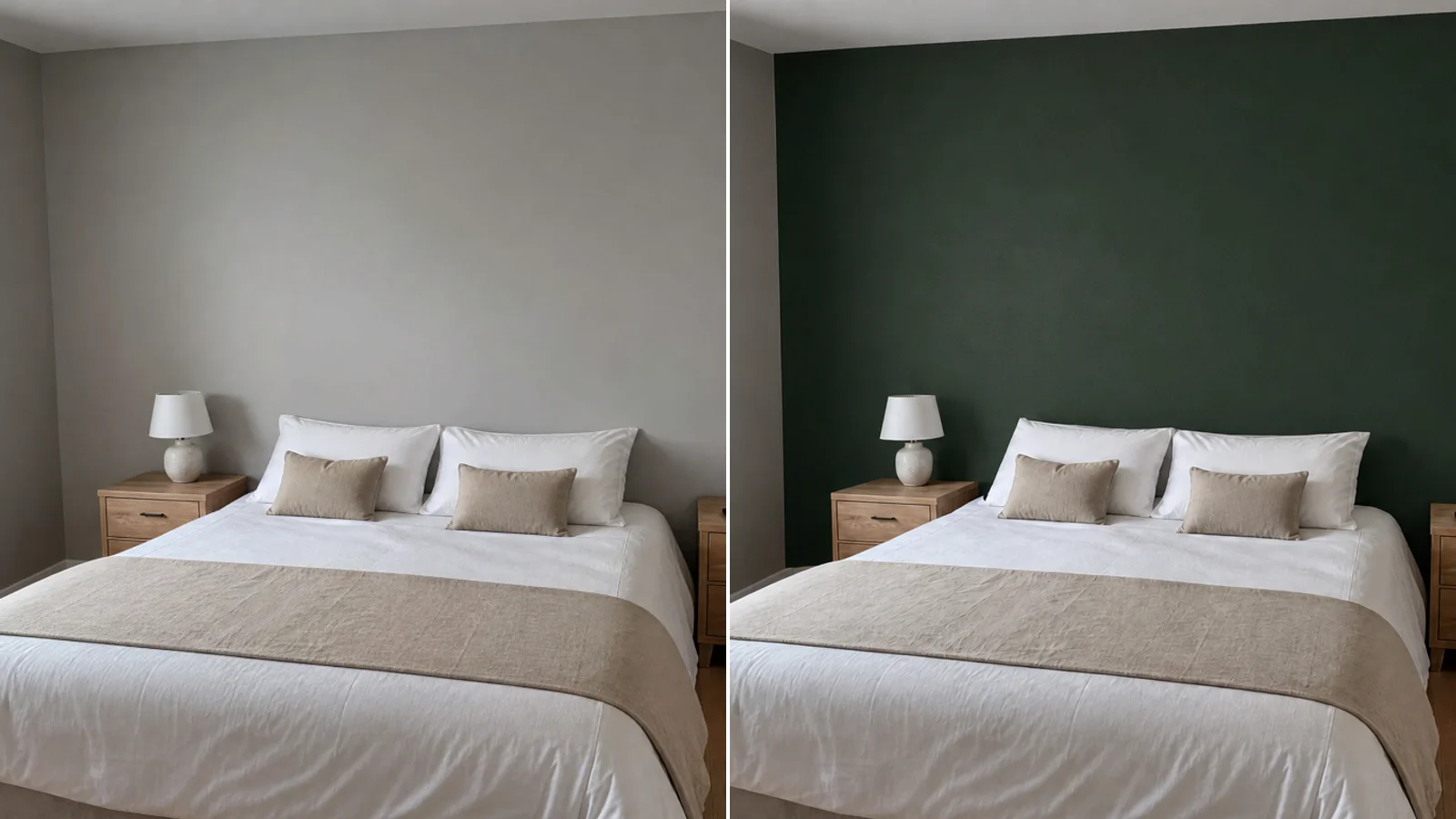
"Paint the wall deep forest green" turned a flat grey wall into a believable deep green, with the lamps, pillows and bed left alone. The uneven grey of a real paint finish carried through, so it doesn't read as a flat digital fill.
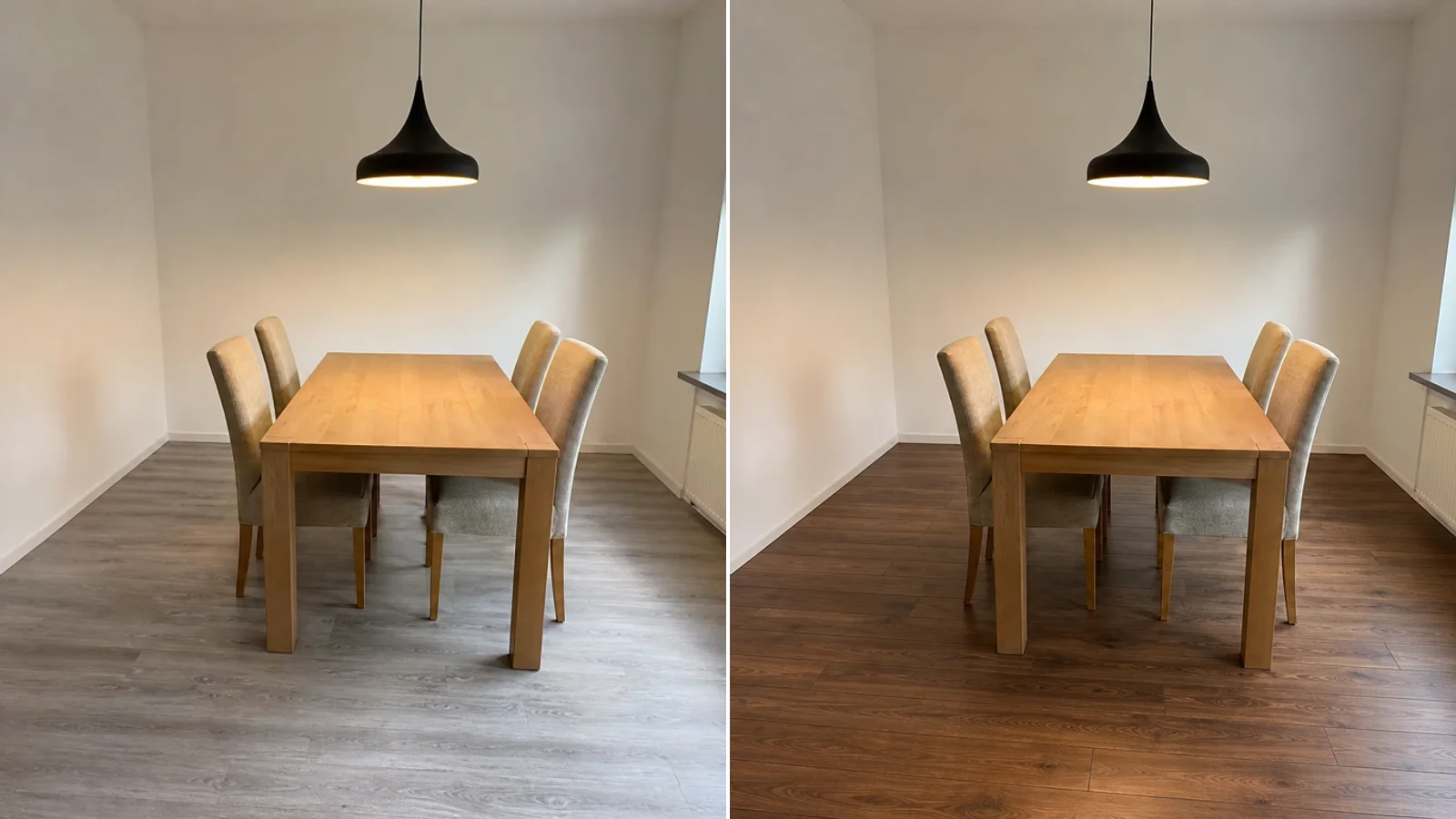
For the floor, "replace the floor with warm walnut hardwood planks" kept the planks running in the room's perspective and put believable reflections on them. The table and chairs were left as they were.
Takeaway: surface changes are the most reliable edit in our set. Paint right up to the edges of the surface, and leave furniture out of the brush.
Planning a renovation or selling a home? Previewing a paint colour or flooring for your own decision is fine. Putting an edited wall or floor into a listing is a different matter: some MLSs prohibit it. See the disclosure section below.
Change several things in one edit
Painting several areas and giving each its own note saves you from editing the same photo again and again. Here's the kind of prompt the editor builds for three areas (shortened):
In the masked areas only (3 separate areas), apply a different edit to each, and do not mix them up: 1) the masked area at the middle left of the image: replace the sofa with a sage green velvet sofa…; 2) the masked area at the lower-center of the image: replace the rug with a plain charcoal grey wool rug; 3) the masked area at the upper-left of the image: replace the framed photograph with a large abstract canvas in terracotta tones.
The living room above (the cover image) came back with all three changes in place. So did the bedroom, where we repainted the wall, recolored the bedding and swapped two nightstands in one go:
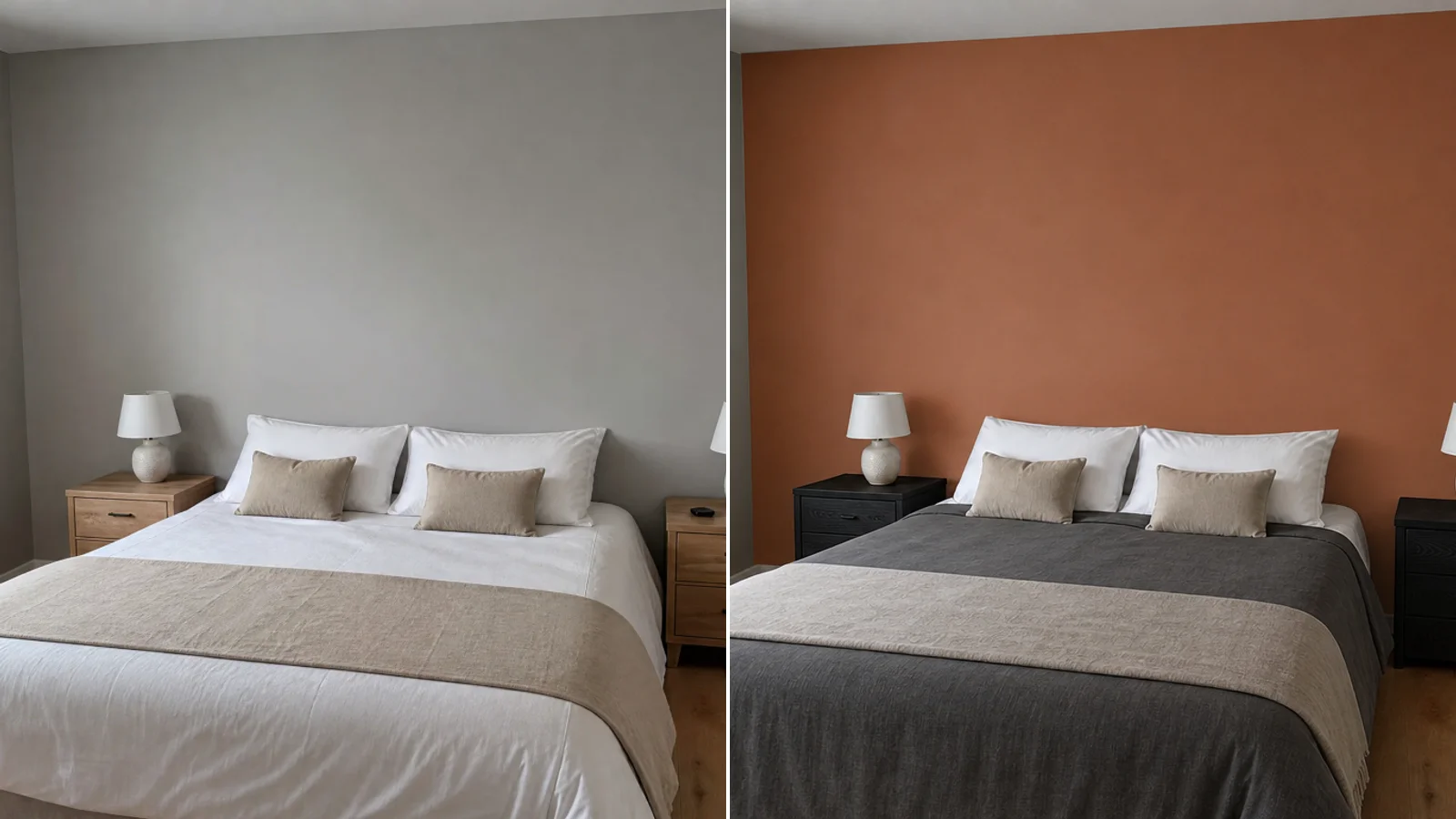
One area was only partly followed: our note said "duvet and bed runner," and the duvet turned charcoal while the runner stayed beige. With several things in one area, expect the model to pick the dominant one.
Some guides advise one change per edit because, given a list of five changes, the model "will do two or three and lose the rest." We didn't see that with three areas, but we didn't test more than three, and the editor caps an edit at four.
Terse notes can leak onto things you didn't paint
This was the surprise. We ran the dining room twice with notes that name the object and twice with notes that don't:
- Named: "replace the dining chairs with black wooden chairs with woven rattan seats" / "replace the floor with warm walnut hardwood planks" / "replace the pendant lamp with a large white globe pendant lamp."
- Terse: "black wood and rattan" / "warm walnut planks" / "white globe."
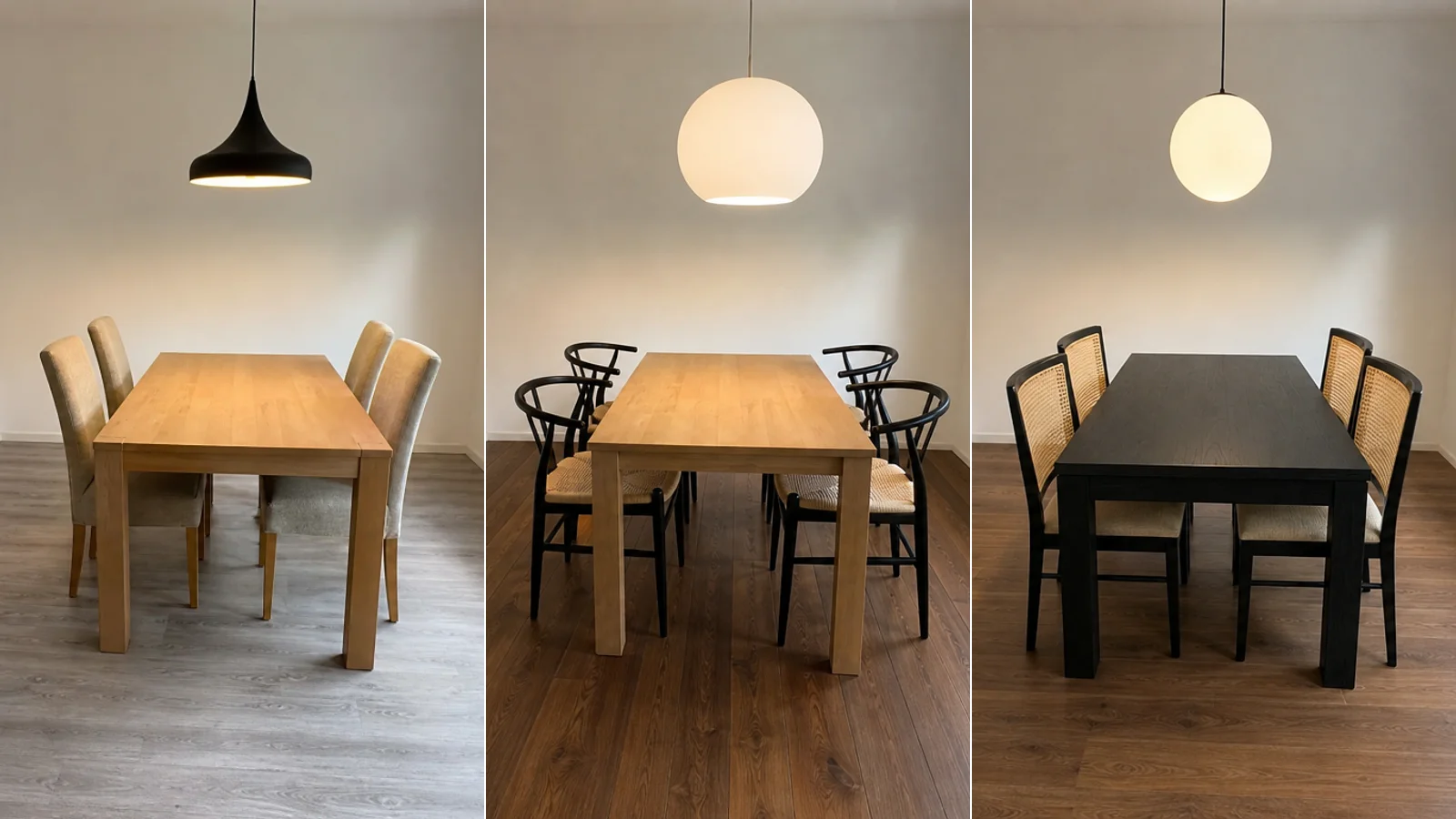
Both versions changed all three painted areas. But in both terse runs, the table, which we hadn't painted, turned black (its tabletop's brightness dropped from 156 to 90 out of 255). With named notes, the table stayed oak both times. The word "black wood" had nothing tying it to the chairs, so the model applied it to the room's other wooden object.
In a separate living-room test, terse notes caused no leak, so this doesn't happen every time. It happened in two of three terse runs and in none of four named runs. That's a small sample, but a cheap rule follows from it:
Name the object in every note, and be careful with materials that other things in the room share ("black wood," "oak," "white").
What changes outside the brush (and what doesn't)
The mask is guidance, not a lock. OpenAI's own documentation says it plainly: "Masking with GPT Image is entirely prompt-based. The model uses the mask as guidance, but may not follow its exact shape with complete precision."
So we measured it. For each of the 12 edits we compared the result with the original, outside the painted area plus a 24-pixel safety margin:
- The average pixel moved by 3.4 to 7.8 levels on a 0–255 scale (about 1–3%).
- Between 1.6% and 12.2% of those pixels moved by more than 16 levels. The product-photo swap scored highest, and the three-area bedroom edit lowest.
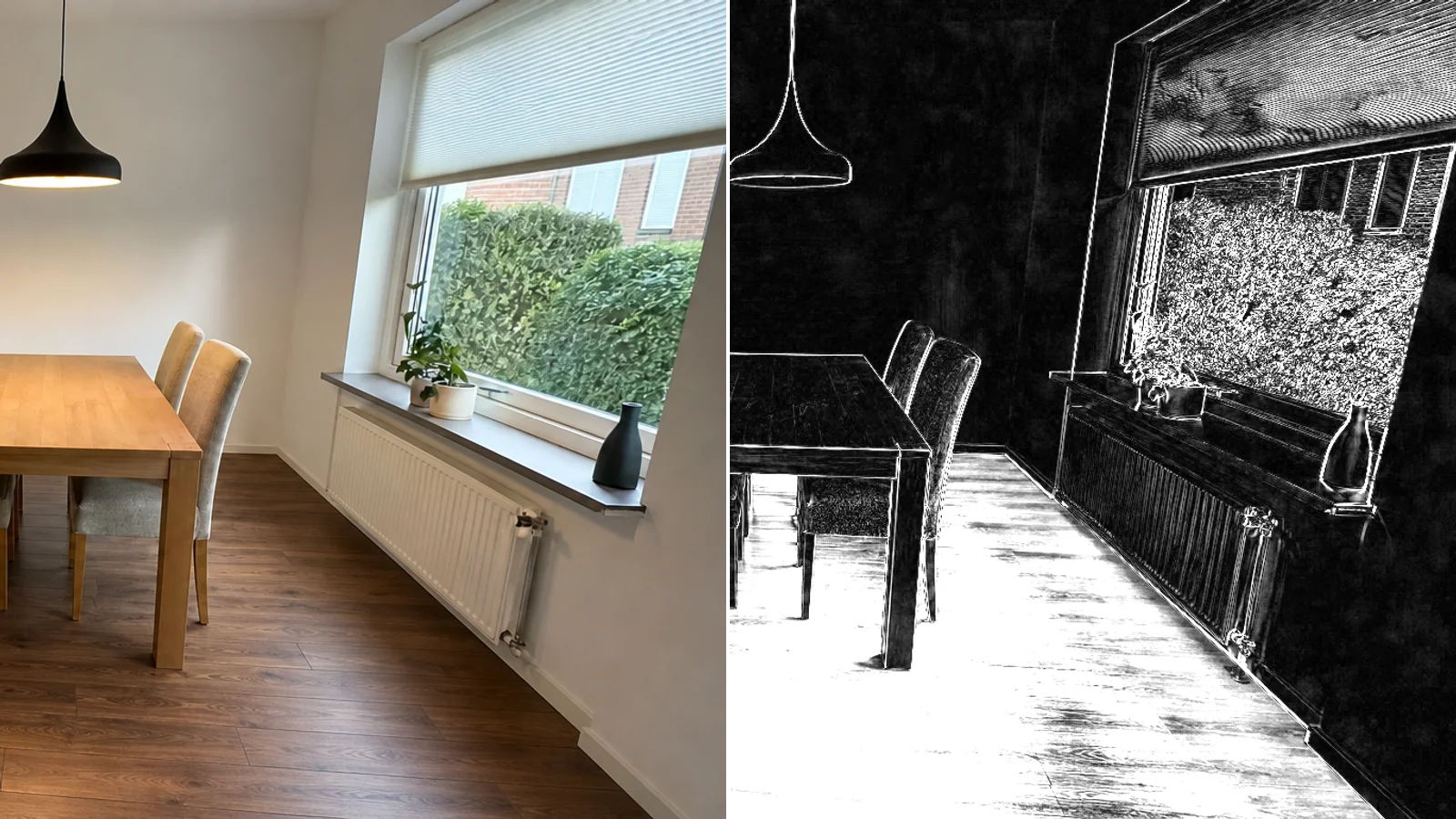
The map above shows where the changes sit (differences multiplied by six so you can see them). The floor is bright because we changed it. Everywhere else, flat walls and ceilings are almost black, and the differences are thin outlines along edges and fine texture, such as the window frame, the hedge and furniture outlines. Side by side, we couldn't see any of it. It does suggest the model redraws the whole picture rather than pasting a patch onto your original, so the result is never your original pixels.
Takeaway: the output is a re-render. Keep the original file, and treat the edited photo as a preview.
Before you use an edited photo for a listing or a purchase
For real estate listings: rules for AI-edited photos are tightening. California's AB 723, in effect since 1 January 2026, and the CRMLS rules that implement it require the original photo right before or after the edited one and a clear label such as "virtually staged." CRMLS also says users cannot modify real parts of a property such as wall colour or flooring. NorthstarMLS's guidance likewise limits virtual staging to personal property. NAR's Code of Ethics (SOP 12-10) prohibits misleading images, and NAR reports the industry is pushing for more disclosure. In short: swapping furniture can be fine if disclosed, but CRMLS and NorthstarMLS both prohibit changing walls or floors in listing photos. Our virtual staging guide and floor staging guide cover the details.
For buying furniture: the picture tests style and colour. It does not measure. Check the retailer's dimensions against your room before you order.
Six rules from the 12 edits
- Paint the whole object, including edges and legs. All our masks did; we didn't test sloppy ones.
- Name the object in every note ("the dining chairs," not "black wood").
- Watch shared materials. "Black wood" is a leak risk if other wooden things are in the room.
- Keep nearby things you care about outside the brush (cushions, lamps, the coffee table).
- Use a clean product photo with the full outline visible for exact pieces.
- Re-run when something's off. Each run is a fresh draw, so a miss on one run doesn't mean a miss on the next.
Try it on your own room
The EasyRoomAI AI Room Editor runs this same flow: paint, describe or attach a product photo, and get an edit in about a minute. Your first edit each day is free without an account (one area, text note, small watermark). A free account unlocks reference photos and up to four areas per edit. An edit costs 4 credits for one area, plus 2 for each extra area.
Not sure whether to edit one piece or redo the whole room? Our roundup of AI interior design tools compares the options.
Frequently asked questions
Can AI change furniture in a photo without Photoshop?
Yes. Paint over the piece in an AI photo editor and describe the replacement, or attach a product photo. The model redraws the painted area to match your room's perspective and lighting. There are no layers or masks to refine by hand.
Do I need a product photo to swap a sofa?
No. A text note works for colour, material and general style, and our dining-chair swap used one. A product photo is better when you want a specific item, because it carries the exact arm shape, legs and shade.
Will AI change the rest of my room?
Slightly. In our 12 edits, the average pixel outside the brush moved by about 1–3% of the full brightness scale, mostly along edges and fine texture, and we couldn't see it side by side. A vague note can also spill onto unpainted objects: in two of our three terse-note runs, an unpainted table changed colour. Name the object in each note to avoid it.
Can I change more than one thing at once?
Yes. In seven runs with three painted areas each, 20 of 21 areas changed as asked, and one was partial. Give each area its own note. The AI Room Editor allows up to four areas per edit for members.
Can I use an AI-edited photo in a real estate listing?
Only with disclosure, and not for permanent features. Many MLSs now require a clear label and the original photo next to the edited one. California's rule, effective 1 January 2026, is one example. CRMLS and NorthstarMLS also don't allow changes to wall colour or flooring in listing photos. Check your MLS's rules first.
Is the preview true to size?
No. AI previews show style, colour and rough placement. They don't measure. Compare the product's listed dimensions with your actual room before buying.
Preview the change before you commit
Painting a wall, swapping a sofa or trying a new floor takes a minute and costs a few credits. A return or a repaint costs a lot more. Open the AI Room Editor, paint what you want to change, and name it in your note.
Ready to Transform Your Space?
Try AI room redesign for free - no credit card required.
Start Designing FreeRelated reading

DIY Virtual Staging Software: How to Stage Listings Yourself in 2026 (Tools, Costs & Step-by-Step Guide)
Stop paying $24–$35 per photo to outsourcing agencies. Compare the top DIY virtual staging software in 2026, master the 5-step realtor staging workflow, and avoid costly MLS disclosure and perspective mistakes.
360 Virtual Staging: Complete Real Estate Guide (2026)
Master 360 virtual staging for real estate in 2026 — camera setups, AI panoramic furnishing, seamless 2:1 exports to Matterport & Kuula, and MLS compliance.
Virtual Staging: The Complete Guide for Real Estate Agents (2026)
Everything agents need to know about virtual staging in 2026 — how AI staging works, what it costs, which rooms to stage first, MLS disclosure rules, and how to avoid the mistakes that kill buyer trust.